
What Claude is
Claude is an AI you talk to. You type something, it types back. It can write, summarize, analyze documents, work with your files, and help you make a decision. It’s made by a company called Anthropic.
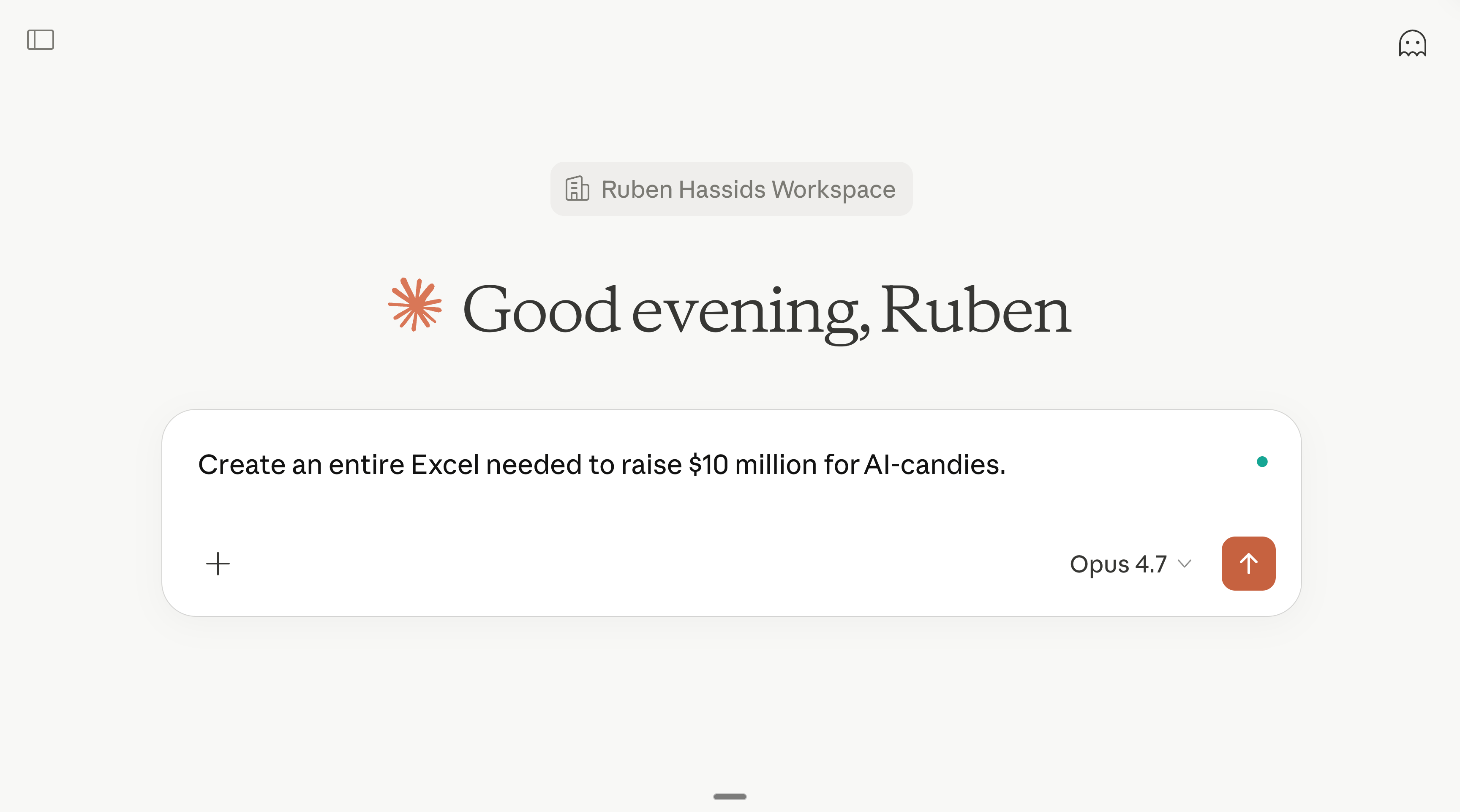
Here’s a taste of what that means in practice. Ask it for a financial model in one sentence and it doesn’t hand you a paragraph about spreadsheets. It builds the spreadsheet: twelve tabs, real formulas, the whole thing, previewable right inside the chat. One sentence in, a working Excel file out.

If you’ve used ChatGPT, Claude is the same kind of thing. If you’ve never used any AI, Claude is a great place to start. The newest model is called Opus 4.8. You’ll see the version number tick up every few months; the name on the menu matters less than knowing you should pick the latest one.
How it actually works, in thirty seconds
You don’t need the engineering. But three concepts will save you from the most common beginner frustrations, and the most expensive CEO mistakes.
One. Autocomplete at scale.Claude predicts the next word, billions of times per response. That’s how all of these assistants work. It’s pattern-matching at a speed that feels like thinking, but it isn’t thinking the way you do. This is why Claude can sound completely confident even when it’s completely wrong. Confidence is not a signal of correctness. File that away now.

Two. Sycophancy.Claude is trained to be helpful and to agree with you. The side effect: say something false and it might nod along instead of correcting you. Don’t trust agreement. For a CEO this is the dangerous one, because the thing you can never get enough of is people willing to tell you you’re wrong. You have to force it. Ask it to argue the other side.

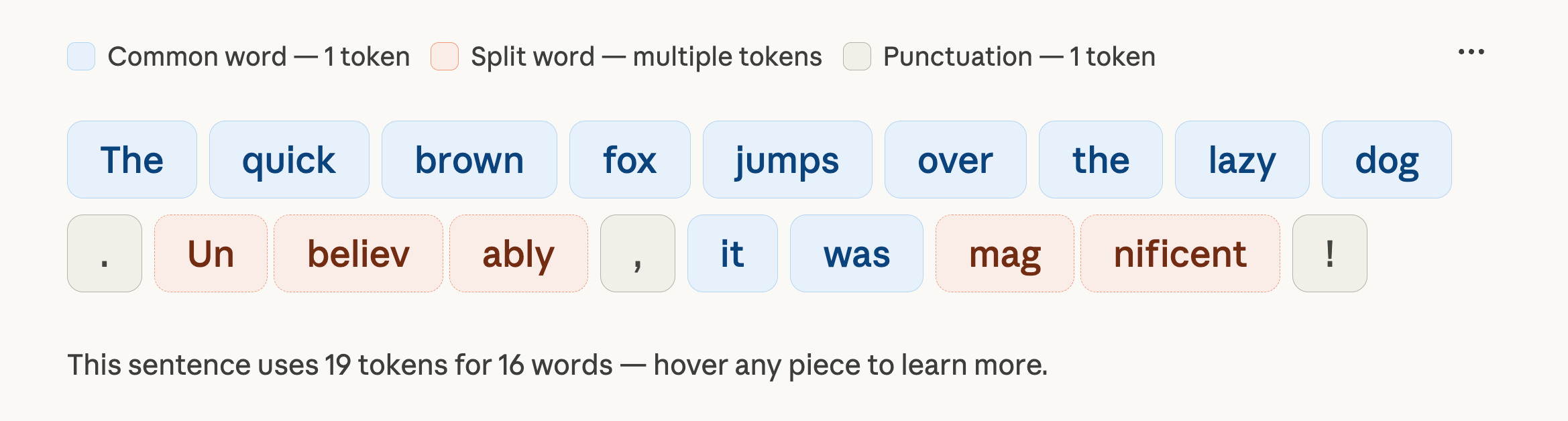
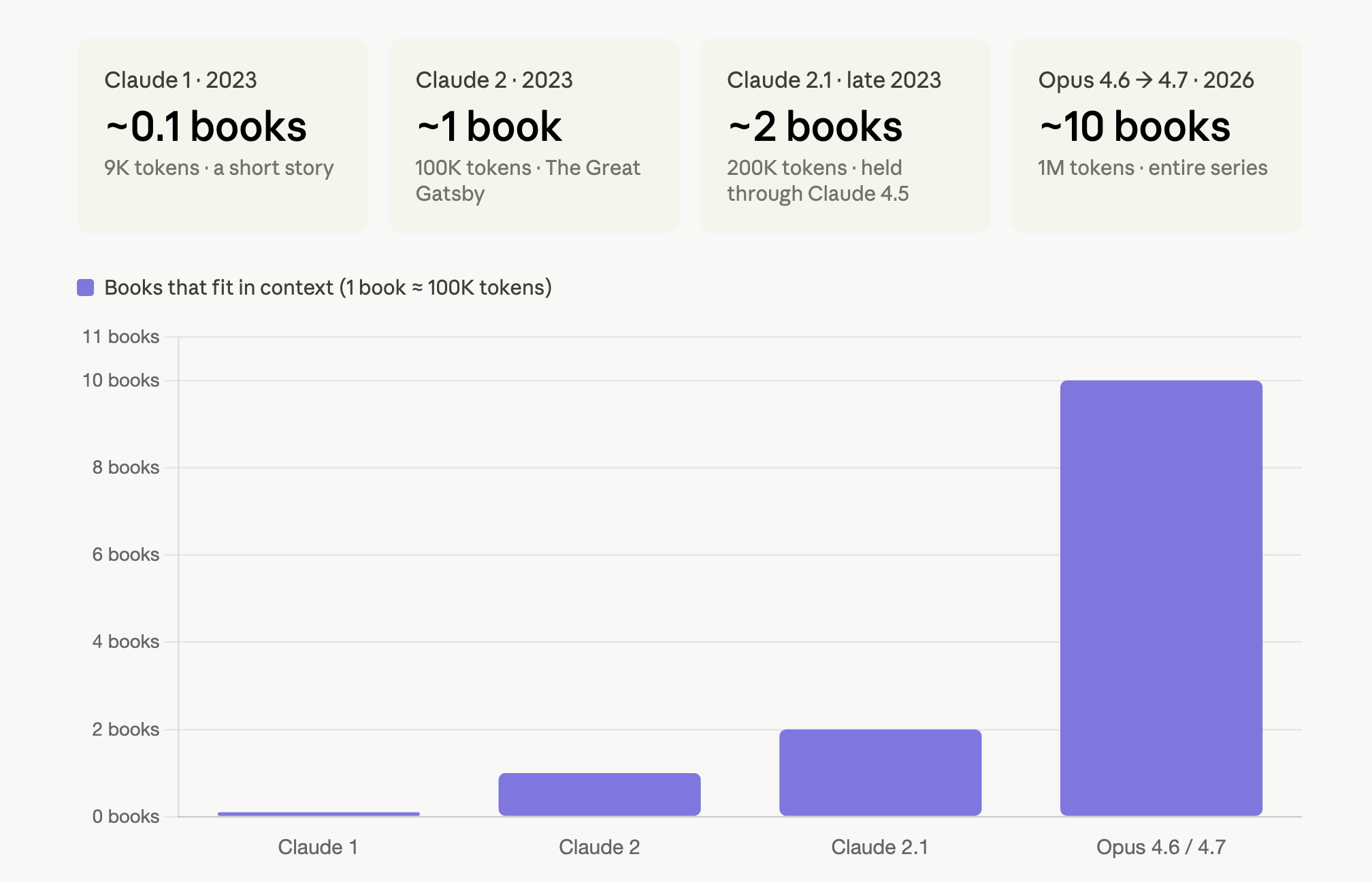
Three. Tokens.Claude reads and writes in chunks called tokens, roughly a word each. Every conversation has a limit on how many fit. That’s why a long chat eventually gets muddy: the memory fills up. The fix is simple. Start a fresh chat. A clean slate is free.
Remember
Claude vs. ChatGPT
Everyone’s heard of ChatGPT, even people who don’t use it. Use it as the reference point. Claude and ChatGPT are the same species. You talk to both the same way. You can ask both the same questions. They just have different personalities and strengths.
Where Claude tends to win
- Writing voice.Claude’s default writing is less AI-flavored. If you’ve ever read ChatGPT output that sounds like a corporate memo nobody asked for, Claude does that less.
- Long documents. Claude can read a 200-page document in one go without losing the thread. ChatGPT has been catching up, but Claude still wins here.
- File work.The desktop app can see your local folder and work with your files directly. ChatGPT can’t, yet.
- Multi-step jobs.Claude has a work mode (Ruben calls it Cowork) that runs tasks for minutes to hours. ChatGPT has agents, but they don’t match the scope or the simplicity yet. More on that in the surfaces section.
Where ChatGPT still wins
- Voice mode.ChatGPT’s voice experience is far better right now. Not close.
- Image generation.Claude doesn’t make images. Use ChatGPT or Gemini for that.
- Search. ChatGPT with search feels faster than Claude with search.
- Research.ChatGPT’s extended-thinking mode is better suited to open-ended digging. The pros often search with ChatGPT, then hand the results to Claude.
The honest take
How to get it, and what it costs
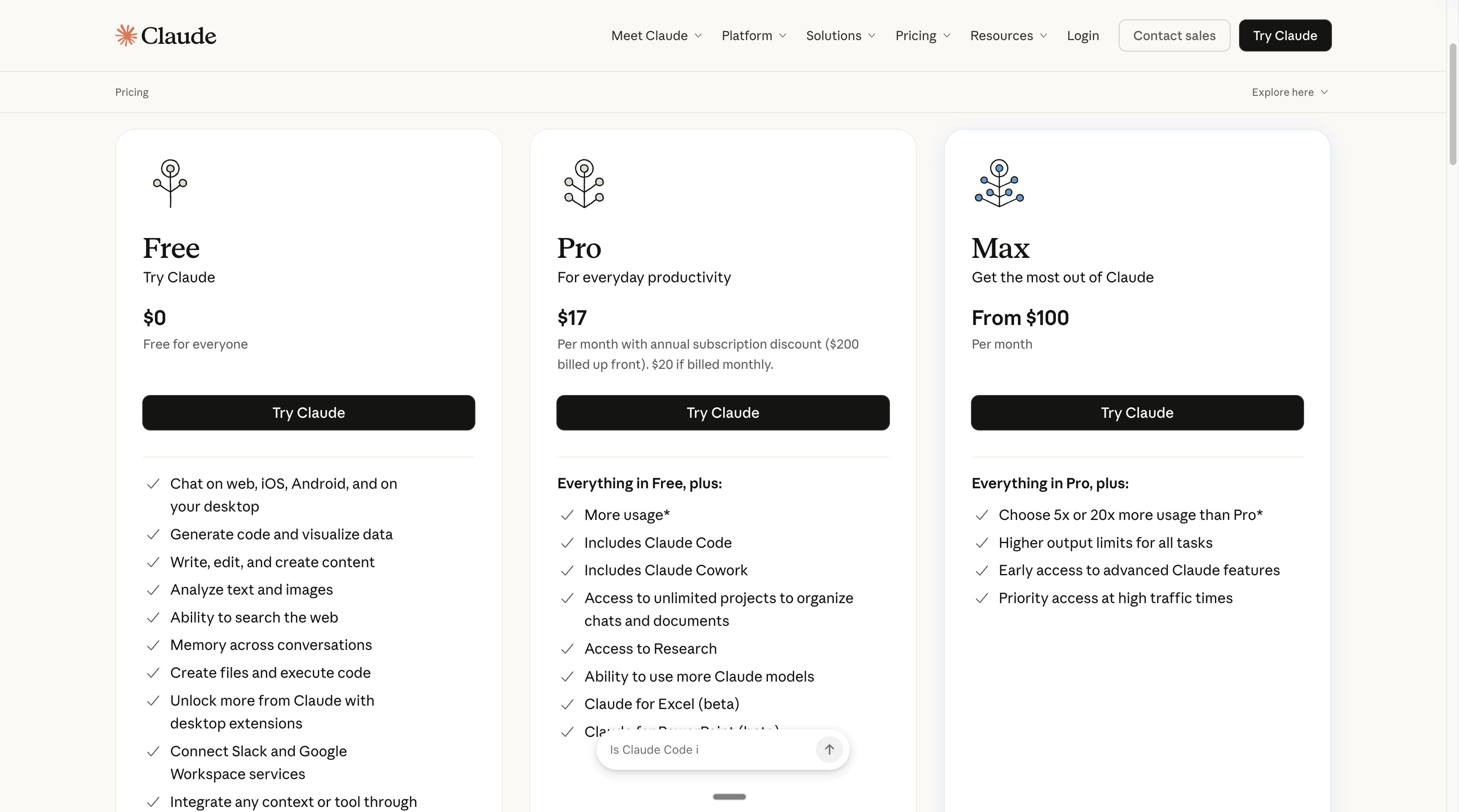
Go to claude.ai and sign up with your email. The plans that matter:
- Free · $0. Works in the browser. Limited messages per day. No work mode. Good for a couple of weeks of testing to decide if Claude is for you.
- Pro · $20/mo. The best model (Opus), much more usage, the agentic work mode, Claude Code, and Projects. Same price as ChatGPT Plus. This is where most people land.
- Max · $100 or $200/mo.Heavy usage of everything, roughly 5x and 20x Pro. For people who hit Pro’s ceiling week after week.
- Team and Enterprise. For organizations. Team seats start around $25 per seat per month, with admin controls and your data kept out of model training.
The rule for picking
- Freewhile you’re still deciding.
- Pro if you plan to reach for Claude more than three times a week.
- Maxif Pro keeps running out, or you’re running the work mode on long tasks daily. You’ll know.
Tip
The three Claudes
This is where most beginners get lost. “Claude” shows up in several places. Three of them matter. The rest you can ignore for now.
1. Browser Claude (claude.ai)
You type, you get an answer. Works on the free plan. Best for quick drafts, summaries, and thinking out loud. This is the closest experience to ChatGPT. If you’re brand new, start here. Nothing to install.

2. Desktop Claude (Mac or Windows app)
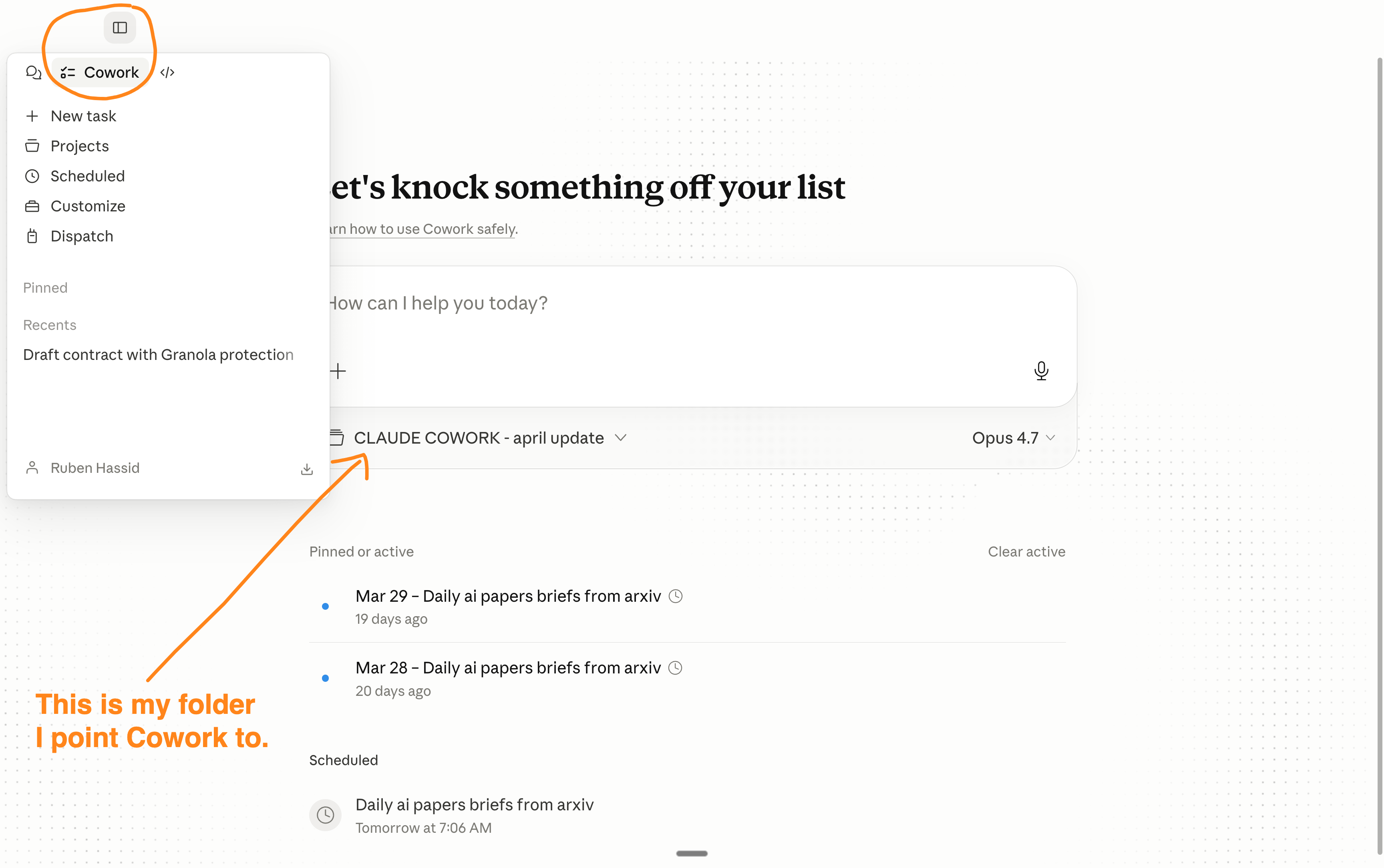
Same account as the browser, installed on your computer. Why it matters: it can see your local files, and it unlocks the work modes. Drop a folder of documents in front of it and it actually reads them, instead of you copy-pasting one at a time. For a leader who lives in documents, this is the version that earns its keep.
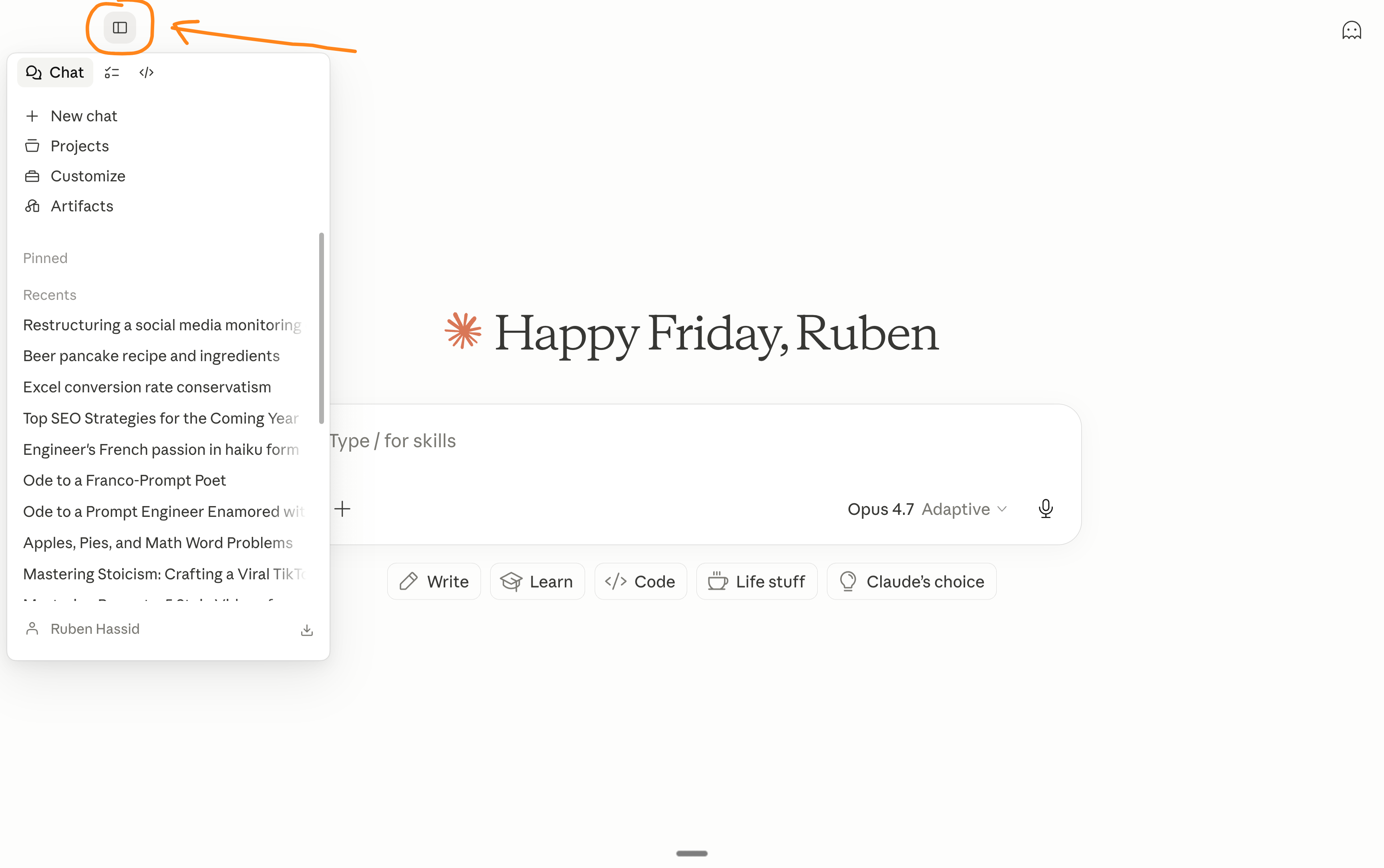
3. The agentic work mode (inside the desktop app)
This is the next level, and honestly the best thing to happen to AI since ChatGPT. It does real work for minutes to hours while you do something else. You give it a task, it plans the steps, reads your files, writes the outputs, and asks you clarifying questions along the way. Paid plans only, desktop only. Anthropic calls this capability Cowork; the name will probably change, the capability is what matters. Picture pointing it at a folder of 40 messy invoices and saying “sort these by client, flag the overdue ones, and draft a follow-up for each.” You walk away. You come back to finished work.
Remember
How to talk to Claude
A prompt is just the text you send. There’s no secret language. Five rules cover almost everything, and the thread running through all of them is the same: what you feed it sets what you get back.
Rule 1. Be specific.“Write me an email” is vague and gets you something generic. “Write a four-sentence follow-up to a client named Sarah who missed our Tuesday call. Friendly but firm.” gets you something you can actually send. The more specific the input, the more specific the output.
Rule 2. Give examples.The single best thing you can do. Paste something you wrote and liked, and say “write like this.” Claude learns your voice from examples faster than from any instructions you could write.
Rule 3. Say what you want, not what you don’t. “Don’t make it too formal” is weaker than “write it like a text to a colleague.” Point at the target, not away from it.
Rule 4. Start short, add detail.Don’t write a 500-word prompt on the first try. Start with two sentences. See what comes back. Then steer: “make it shorter,” “change the tone,” “add a line on pricing.” That’s why it’s a chatbot. You chat with it.
Rule 5. If it gets confused, start a new chat. Long conversations get messy as the memory fills. When the answers start feeling off, open a fresh chat and paste in the key context. A clean start is free, and almost always faster than fighting a tired conversation.
Warning
It does have some judgment, though. Push it on a genuinely bad idea and it won’t always just agree. Ruben asked it to help pursue a $1 billion exit for his AI candy company, and Claude pushed back instead of cheering him on. The lesson isn’t that it’s always honest. It’s that you still have to ask it to challenge you.

What Claude is good at
A short, honest list of where Claude moves the needle. These are the ones worth trying first.
- Writing. First drafts, rewrites, editing, adapting to your voice when you give it examples. This is where Claude shines. Investor updates, customer notes, the all-hands memo you keep putting off. You edit for judgment, not for tone.
- Summarizing.Drop in a long PDF and ask for a one-page summary with page references so you can verify. A summary you can’t trace back is a rumor. A summary with page numbers is a tool. Always ask for the citations.
- Thinking with you. Structuring a messy idea. Pressure-testing a decision. Claude is a good thinking partner if you push back instead of accepting the first answer. Ask it to argue your side, then argue the opposite.
- Working with your files. On the desktop app and in the work mode, Claude reads your local folder and creates files (PPT, Excel, DOCX) right on your computer.
- Long documents.Upload a 200-page file, full context, nothing lost. This is Claude’s biggest technical advantage. It can digest a board pack or a deal contract whole.
- Reasoning step by step.Give it a complex question and ask it to think step by step. It’s good at breaking down problems you throw at it.
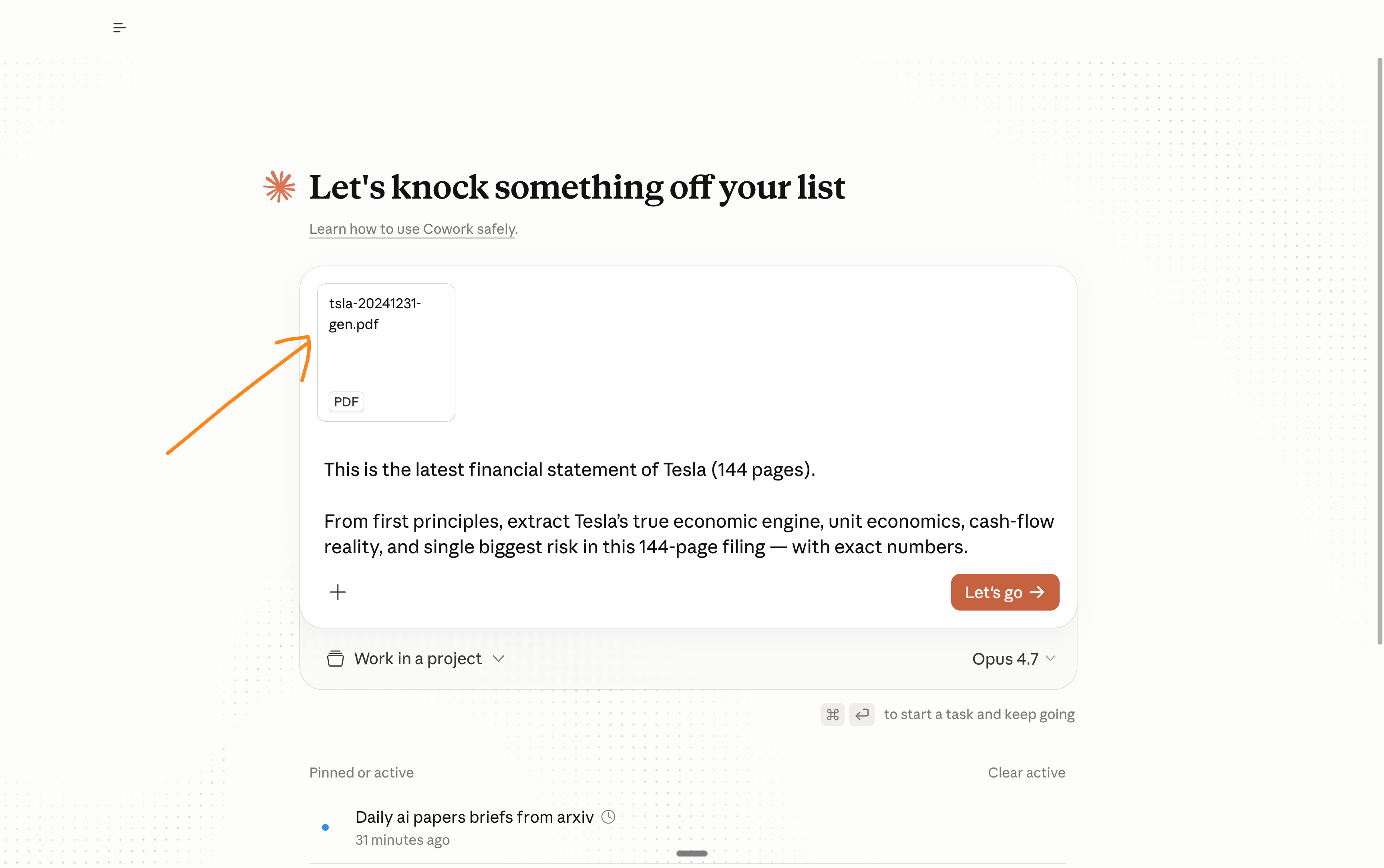
Here’s the long-documents claim made concrete. Ruben uploaded Tesla’s financial statement, a 144-page PDF, and just asked a question. Claude read the whole thing in one go.
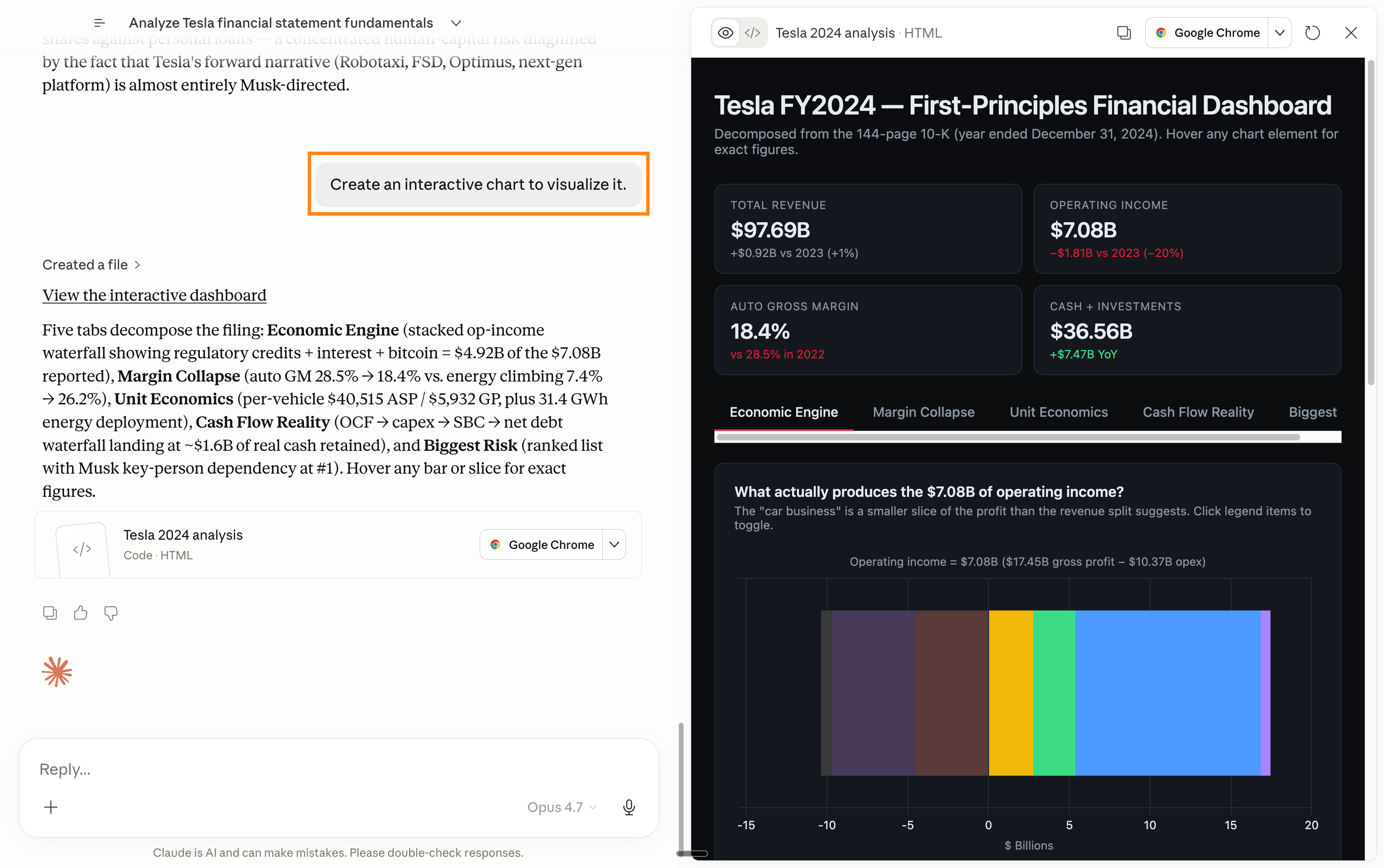
And the output isn’t just a wall of text. Ask for an interactive chart from that analysis and it builds one you can open in your browser. The thing you used to read on a flight, in two minutes, with a chart you can click through.
What Claude is bad at
Knowing the limits up front saves you the disappointment that makes people quit in week one.
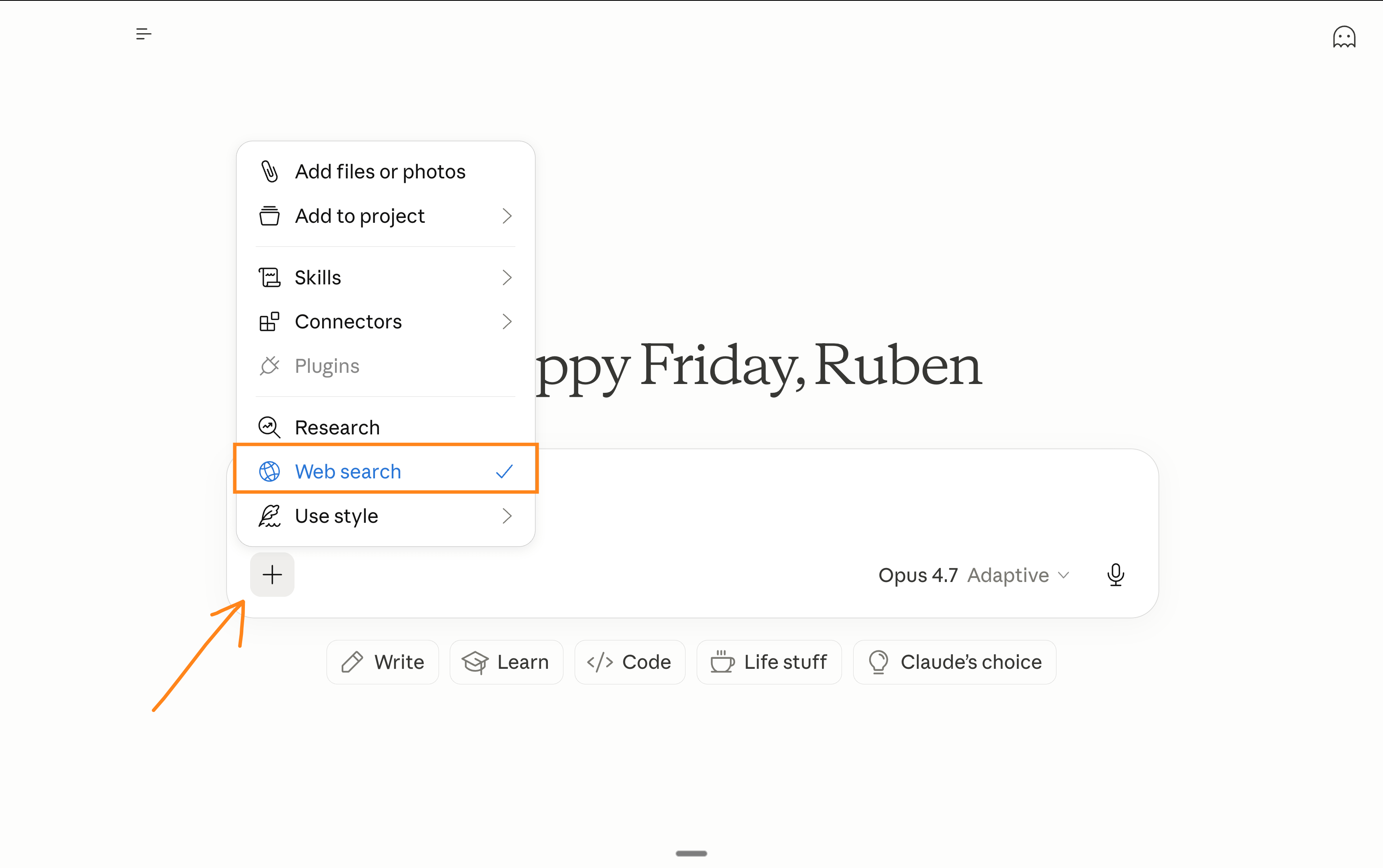
Real-time information.Claude doesn’t know what happened today unless it has a search tool connected. Ask it about this morning’s news and it will guess, and it will sound confident doing it. For anything current, turn search on, though plenty of pros still reach for ChatGPT or Grok when the job is heavy web research.
Precise math.Don’t use Claude as a calculator for anything that matters, unless it’s running code to compute the answer. It’s a language model, not a spreadsheet.
Vague prompts.Ask for “something good” and you’ll get something generic. Claude needs specificity. You get what you give.
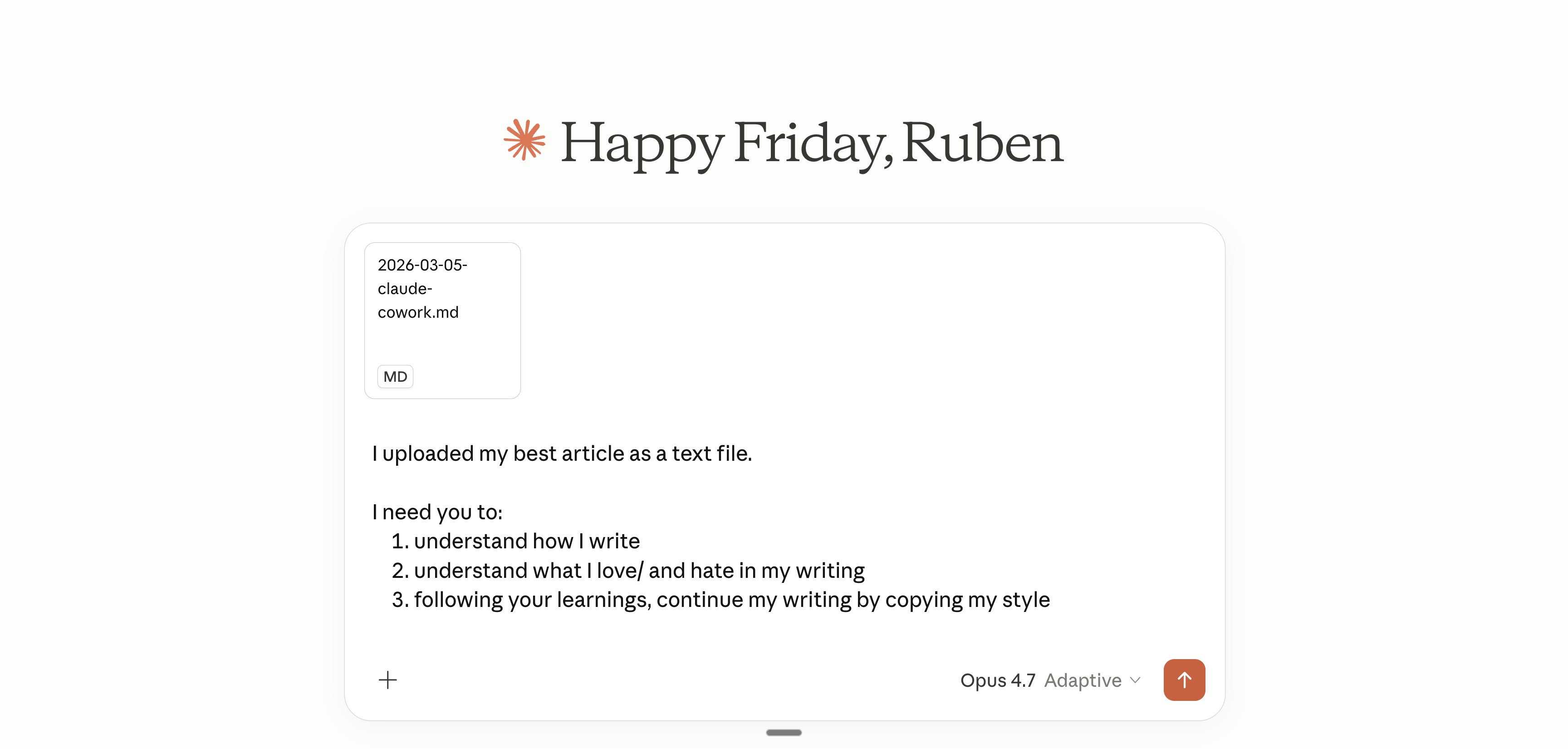
Being a source of truth.Claude sounds authoritative even when it’s wrong. Always verify facts, dates, quotes, and names before anything goes external. There’s an upside to that conviction, though: point it at your own plan and tell it to argue against everything. Used well, it’s a ruthless devil’s advocate. Just remember it stays convincing even when it’s wrong.

Warning
The three words that matter
Only three. Learn these and you’ll use Claude better than 90% of the people paying for it.
Token
The unit Claude thinks in. Every word you type, every file you upload, every response Claude gives gets chopped into tokens. Your usage limits are counted in tokens. A page of text is roughly 500 tokens. A long chat can hit millions, and when it does, the context window is full and the answers go dull. That’s your cue to start a fresh chat.
Work mode (Cowork)
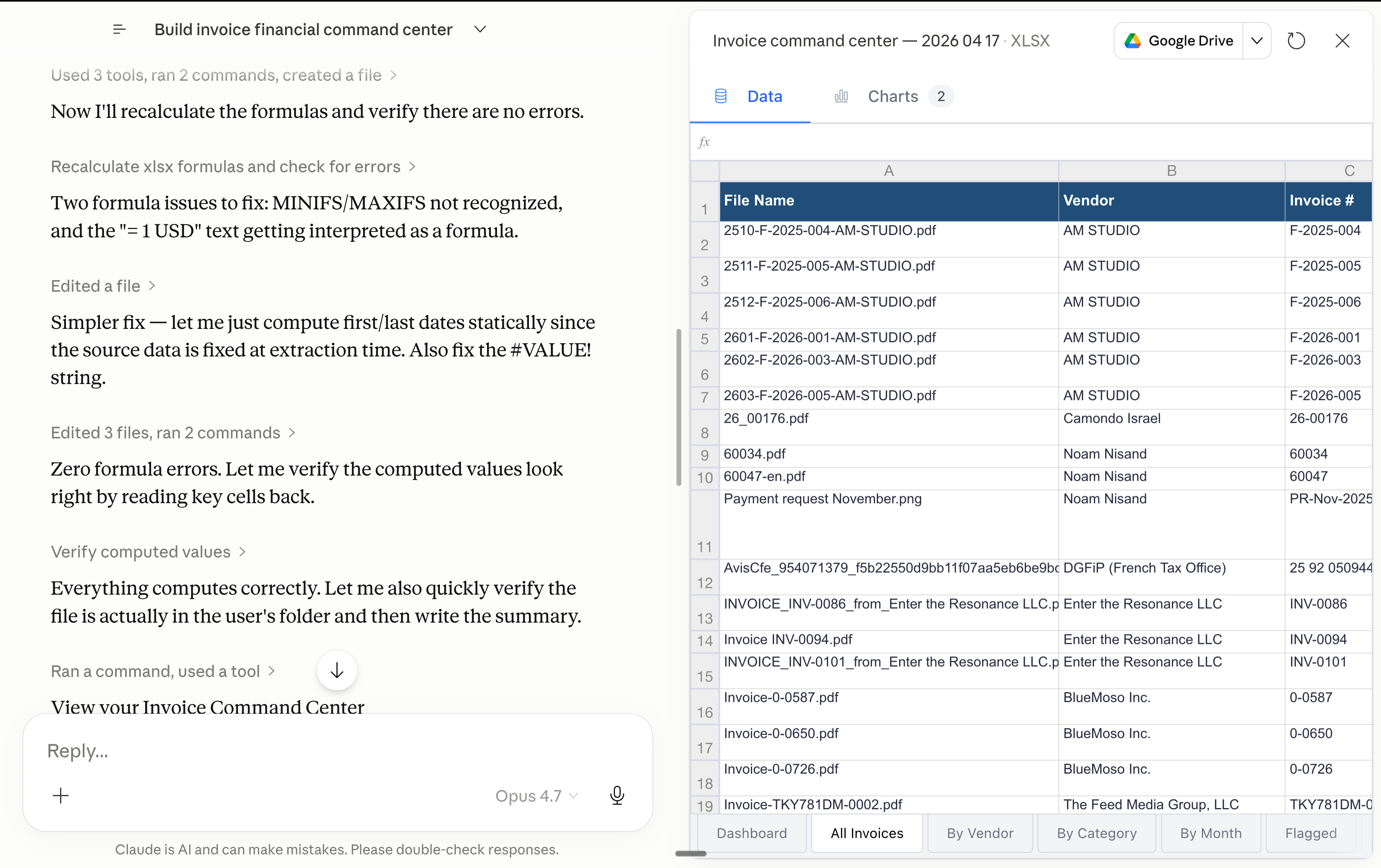
Claude running for minutes to hours on your computer, doing a real task while you do something else. Take the concrete example: a folder of 40 messy invoices, different formats, different fonts, some PDFs, some screenshots. You want them cleaned up, grouped by client, with a drafted follow-up email for each overdue one. Describe that in one sentence and point the work mode at the folder.
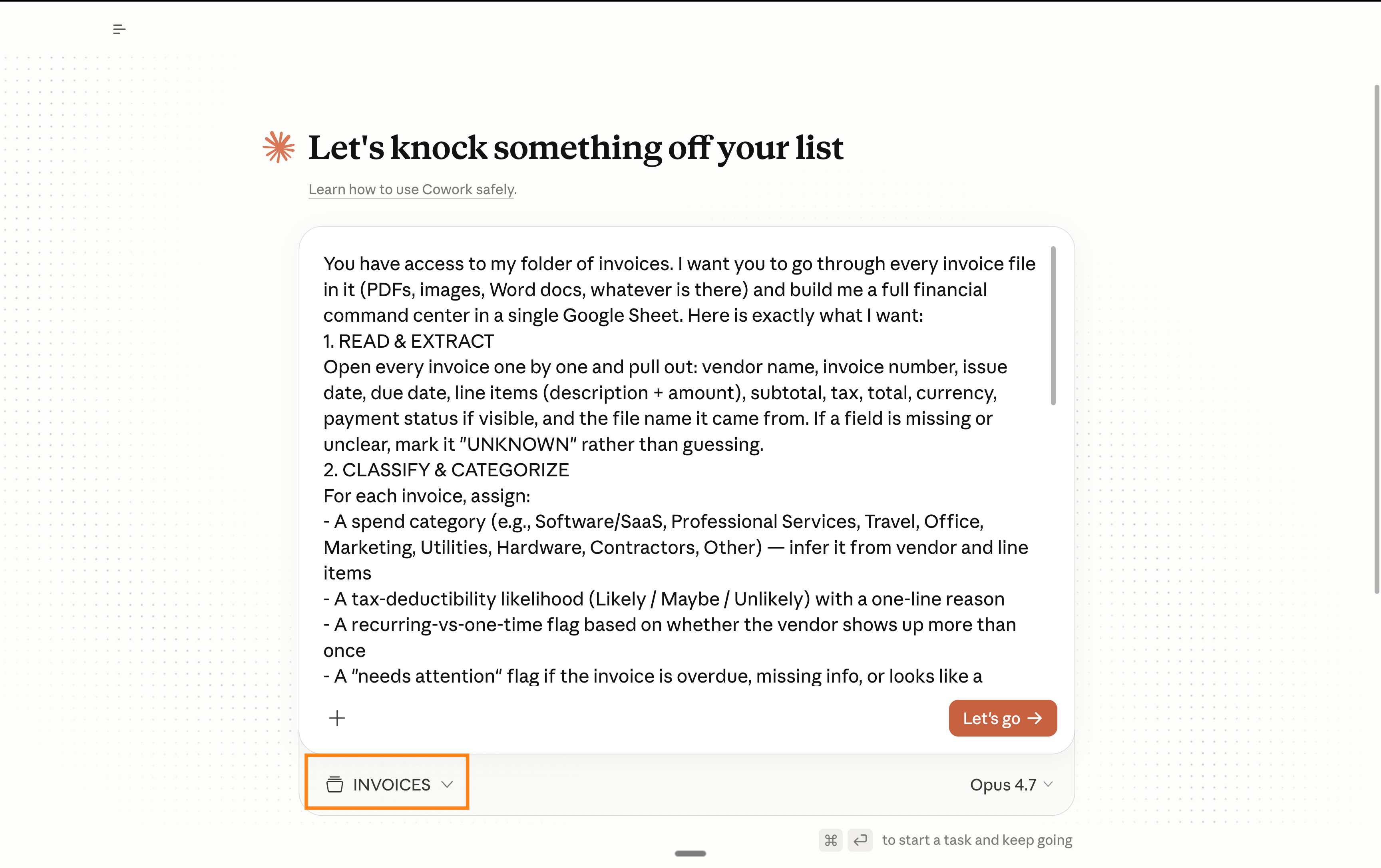
With ChatGPT, that’s copy-paste each invoice, ask, get an answer, copy the next, repeat 40 times. An afternoon. With the work mode, you point it at the folder, describe the task in one sentence, and walk away. It even connects to your tools on its own and asks you clarifying questions before it starts. Like a coworker.

Come back fifteen minutes later. The folder has cleaned files, a summary spreadsheet, and 40 drafted emails, all on your computer. The entire Excel file, every tab, every formula, built.
Claude Code
Claude running inside your terminal, built for developers. If you don’t code, you don’t need it. But you’ll see the name everywhere, so now you know what it is, and your engineers will care. The work mode does about 80% of what Claude Code does for non-developers, with a visual interface.
Quick summary
The words you can ignore (for now)
You’ll see these thrown around a lot. They don’t matter until you’re using Claude daily. But here’s what they mean in plain English, so you can stop wondering:
- Projects.A folder inside Claude that remembers context across chats. Nice once you’re repeating the same kind of work, so you stop re-explaining your business every time.
- Artifacts.The side pane where Claude opens documents, code, or mini-apps it creates for you. You’ll recognize it when you see it.
- Skills. Reusable instructions you trigger by name inside the work mode or chat. Think saved workflows, like /negotiation.
- Connectors. How Claude talks to Slack, Gmail, Google Drive, Notion, and the rest. Set them up when you need them. They let Claude pull info from your apps.
- MCP.Very technical. Basically the plumbing for connecting things to Claude (Connectors are built on it). You’ll never have to touch it yourself.
- Plugins. Bundles of Skills and Connectors. Like a small app store.
If you skipped this section, you skipped the right section. Come back when you need it. There’s a one-look glossary for it too.

Ten things to try this week
You have the map. Now do something with it. Pick three this week. Each one teaches you something the last one didn’t.
- Paste three things you’ve written and ask Claude to draft your next investor update or customer note in that voice. Then ask it to find fresh angles on the web.
- Upload a long PDF, a board pack or deal doc, and ask for a one-page summary with page references you can spot-check.
- Drop in your last five meeting notes and ask for a decisions log: what got decided, who owns each action, what’s still open.
- Point the work mode at your Downloads folder and ask what’s in there and what you could safely clear out.
- Paste a messy board or deal email thread and ask for the next three actions and who owes what.
- Connect your Gmail, then run that same email-thread task with nothing to paste. Claude reads the thread itself.
- Give it a document you’ve been meaning to edit and ask for a sharper rewrite with a diff of what changed and why.
- Feed it a spreadsheet and ask what patterns it notices that you might have missed. Or ask it to build the spreadsheet you don’t have yet.
- Paste a competitor’s pricing page and ask how yours compares and what’s missing. Ask it to mock up a new version you can see live.
- Hand it your calendar for the week and ask what to decline, and why. Make it defend each cut.
Tip
Your test drive tonight
You don’t have to change anything. You don’t have to cancel whatever you use now. Just pick one of these two paths tonight.
The free path (no payment, no commitment)
- Go to claude.ai and sign up.
- Paste something you wrote recently.
- Ask: “Rewrite this in the same voice but sharper, and tell me what you changed and why.”
- Run the same prompt in ChatGPT.
- Compare. Make up your own mind.
The Pro path ($20 for one month)
- Go to claude.ai, sign up, and upgrade to Pro.
- Install the desktop app (Mac or Windows).
- Open the work mode.
- Point it at a folder you care about: your Downloads, a stack of PDFs, a quarter of board materials.
- Ask: “Look through this folder, tell me what’s in it, and suggest three useful things you could do with it.”
- Then watch. Don’t type again. Let it work.
If, after either test, you don’t see the point, walk away. No hard feelings. But most people who read a guide like this feel a little smarter for twenty minutes and never open the tool. Don’t be that person. Open it tonight.
With thanks
How the pros use it
You can stop at the test drive. Most people should. But if you want a glimpse of what pushing Claude to its limit looks like (without writing a line of code), here’s the short version.
The pros don’t write prompts. They build Skills. A Skill is a saved workflow you trigger by name. Ruben types one command, /negotiation-prep, plus a one-liner, and that single prompt sets off a chain of work. Claude reaches into his meeting notes, his Gmail, his Drive, and his Slack, pulls every relevant thread, builds its own timeline of where the deal stands, then turns around and asks himthe clarifying questions. It drafts two versions of the email, a soft one and a firm one, and offers to drop the one he picks straight into his Gmail with the right people CC’d. One prompt in. A negotiated, ready-to-send draft out.
That’s the shape of the leverage. One operator sets the direction in a sentence; the tool chains together the research, the synthesis, the first drafts, and the busywork that used to need three or four people. You don’t have to build that on day one. You just have to open the tool and try one thing. And remember: this is the worst Claude will ever be. It only gets sharper from here.
Reading about the tool isn’t the same as using it. The whole point is the second one.
Open it tonight and try one thing.
Greg Rosner · PitchKitchen · Adapted with credit from Ruben Hassid’s “Claude for Dummies.”